
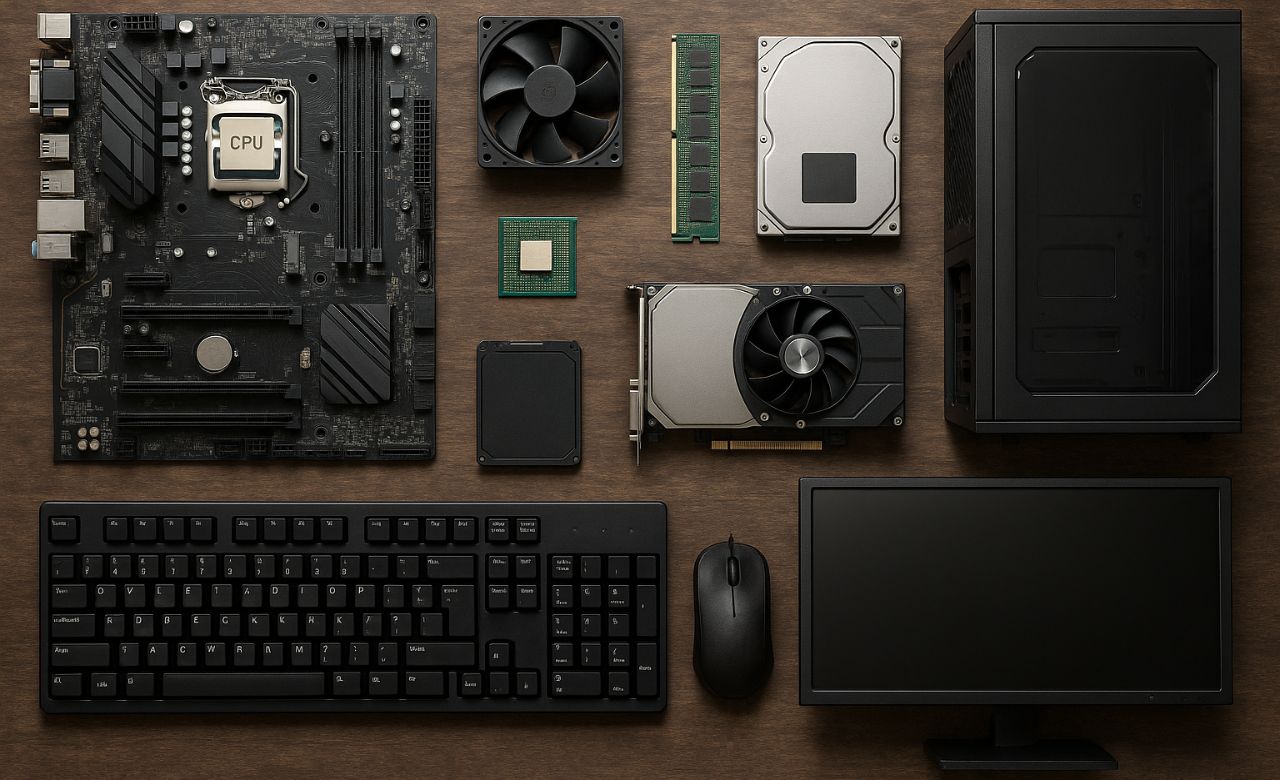
A computer might seem like a complex black box, but it’s actually a collection of interconnected parts, each with a specific job. Understanding these components is key to appreciating how your computer works and even troubleshooting issues.
Here’s a breakdown of the main parts of a computer and what they do:
1. Motherboard: The Backbone
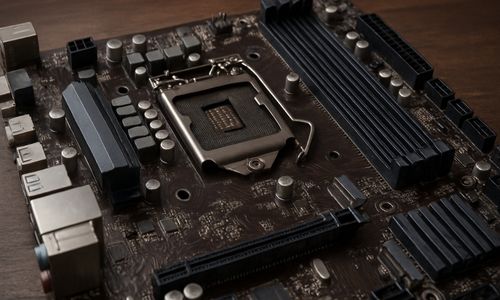
What it is: The motherboard is the main circuit board of a computer. Think of it as the central nervous system or the foundation upon which everything else is built. It’s a large, flat board with various slots, connectors, and integrated circuits.
What it does: The motherboard acts as the communication hub for all the other components.
- Connects Everything: It physically connects the CPU, RAM, storage, graphics card, and all other peripherals (like your keyboard and mouse).
- Enables Communication: It provides the electrical pathways and data buses that allow these components to send and receive information from each other.
- Distributes Power: It distributes power from the power supply unit to all the connected components.
- Houses Essential Firmware (BIOS/UEFI): It contains the Basic Input/Output System (BIOS) or Unified Extensible Firmware Interface (UEFI), which is the first software that runs when you turn on your computer, initiating the boot process.
2. CPU (Central Processing Unit): The Brain
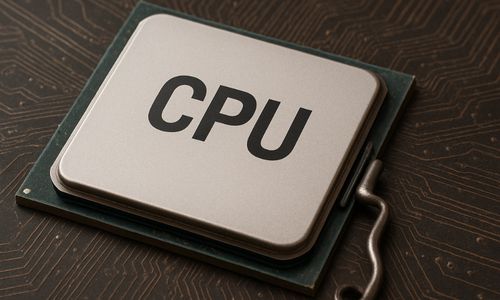
What it is: Often called the “brain” of the computer, the CPU is a small, powerful chip located on the motherboard. It’s responsible for executing instructions and performing calculations.
What it does: The CPU performs the vast majority of the processing in a computer.
- Executes Instructions: It fetches, decodes, and executes instructions from programs.
- Performs Calculations: It handles all arithmetic and logical operations.
- Manages Data Flow: It coordinates the flow of data between different computer components.
- Multi-core Processors: Modern CPUs often have multiple “cores,” allowing them to handle several tasks simultaneously, significantly improving performance.
3. RAM (Random Access Memory): The Short-Term Memory
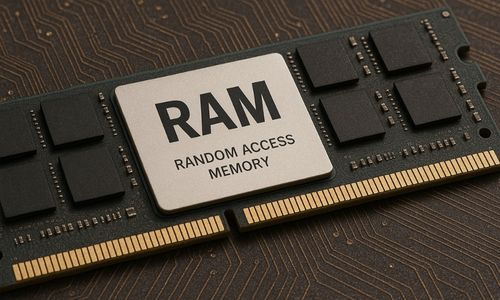
What it is: RAM is a type of volatile memory, meaning it only stores data while the computer is powered on. It comes in “sticks” that plug into slots on the motherboard.
What it does: RAM serves as the computer’s short-term, high-speed working memory.
- Temporary Data Storage: It temporarily stores data that the CPU is actively using or needs quick access to. This includes the operating system, currently running applications, and open files.
- Enables Multitasking: The more RAM you have, the more programs and tasks your computer can handle simultaneously without slowing down.
- Faster Access than Storage: It’s much faster for the CPU to access data from RAM than from the long-term storage (HDD/SSD).
4. Storage (HDD/SSD): The Long-Term Memory
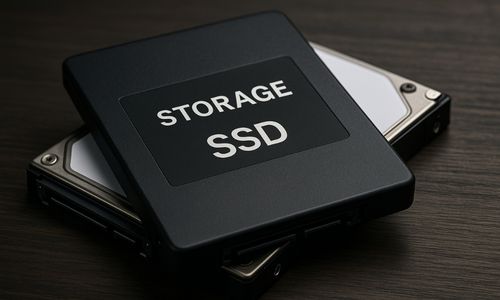
What it is: Storage devices are where your computer permanently keeps data, even when it’s turned off. There are two main types:
- HDD (Hard Disk Drive): An older technology that uses spinning platters and read/write heads to store data magnetically. They are generally slower but offer larger capacities for a lower cost.
- SSD (Solid State Drive): A newer technology that uses flash memory chips (similar to USB drives) to store data. They are significantly faster, more durable, and consume less power than HDDs.
What it does: Both HDDs and SSDs serve as the computer’s long-term memory.
- Stores Operating System: The operating system (Windows, macOS, Linux) is installed on the storage drive.
- Stores Programs and Files: All your installed software, documents, photos, videos, and other files are saved here.
- Boots the Computer: The computer retrieves the operating system from the storage drive when it starts up.
5. GPU (Graphics Processing Unit) / Graphics Card: The Artist
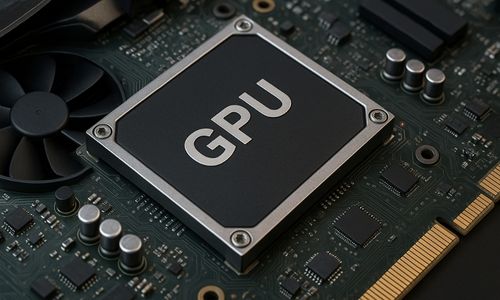
What it is: The GPU, often found on a dedicated graphics card (or integrated into the CPU on some systems), is a specialized processor designed to handle visual data.
What it does: The GPU is responsible for rendering images, videos, and animations on your screen.
- Creates Visuals: It takes data from the CPU and translates it into the pixels you see on your monitor.
- Accelerates Graphics: Dedicated graphics cards are essential for demanding tasks like gaming, video editing, 3D modeling, and graphic design, as they can process complex visual information much faster than a CPU alone.
- Connects to Monitor: The graphics card has ports (like HDMI, DisplayPort, DVI) to connect to your monitor.
6. Power Supply Unit (PSU): The Energy Source
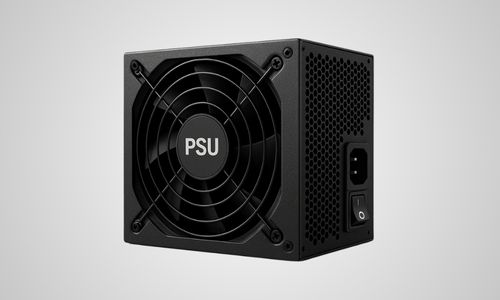
What it is: The PSU is a component that converts the alternating current (AC) electricity from your wall outlet into the direct current (DC) power that the various computer components require.
What it does: The PSU is crucial for providing stable and consistent power to every part of your computer.
- Converts Power: It transforms high-voltage AC into lower-voltage DC.
- Distributes Power: It sends the correct voltage and current to the motherboard, CPU, GPU, storage drives, and other components through a network of cables.
- Protects Components: A good PSU helps protect your components from power fluctuations.
7. Cooling System (Fans & Heatsinks): The Regulator
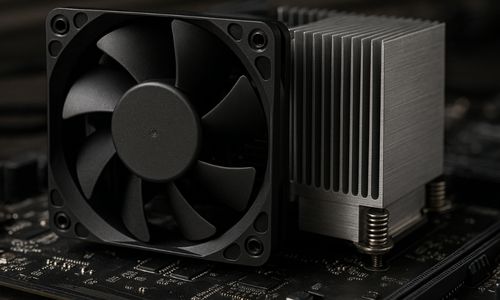
What it is: Computers generate heat, especially the CPU and GPU. Cooling systems typically consist of fans, heatsinks (metal structures with fins to dissipate heat), and sometimes liquid cooling solutions.
What it does: The cooling system prevents components from overheating, which can lead to performance issues or even permanent damage.
- Dissipates Heat: Heatsinks draw heat away from hot components.
- Moves Air: Fans circulate air to carry away the heat from the heatsinks and out of the computer case.
- Maintains Optimal Temperature: Ensures components operate within safe temperature ranges for stability and longevity.
8. Case: The Protector
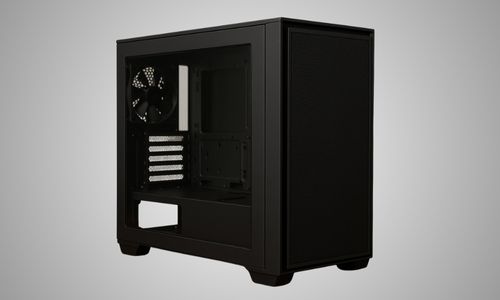
What it is: The computer case (or chassis) is the outer shell that houses most of the internal components of a desktop computer. Laptops have integrated cases.
What it does: The case provides protection and organization for the internal parts.
- Physical Protection: Shields sensitive electronic components from dust, spills, and physical damage.
- Airflow Management: Designed with vents and fan mounts to facilitate proper airflow for cooling.
- Organization: Provides mounting points for the motherboard, drives, and other components, keeping them organized and secure.
- Aesthetics: Also contributes to the overall look and design of the computer.
9. Peripherals: The Interaction Points
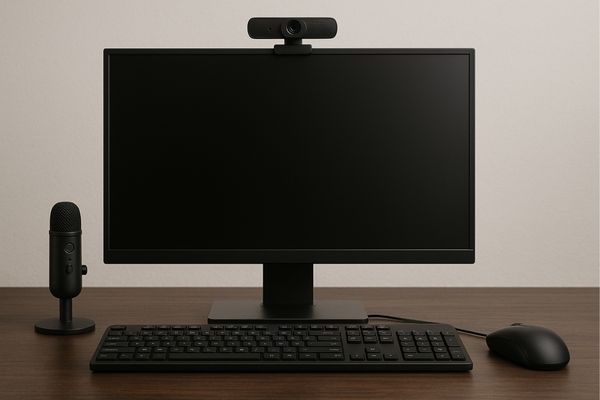
These are the devices that connect to the main computer system, allowing you to interact with it and receive output.
- Input Devices:
- Keyboard: For typing text and commands.
- Mouse: For navigating the graphical user interface and making selections.
- Microphone: For audio input.
- Webcam: For video input.
- Scanner: For converting physical documents or images into digital format.
- Output Devices:
- Monitor/Display: For visual output of what the computer is doing.
- Speakers/Headphones: For audio output.
- Printer: For producing hard copies of documents or images.
How They All Work Together
Imagine you click on an icon to open a web browser:
- Your mouse (input device) sends a signal to the motherboard.
- The motherboard relays this signal to the CPU.
- The CPU processes the command and retrieves the web browser program from the storage drive (HDD/SSD).
- Parts of the program and its current data are loaded into RAM for quick access.
- As the browser opens and renders the web page, the GPU processes the visual information, sending it to your monitor (output device).
- All of these components are powered by the PSU, and their temperatures are regulated by the cooling system, all enclosed within the case.


Leave a Reply