
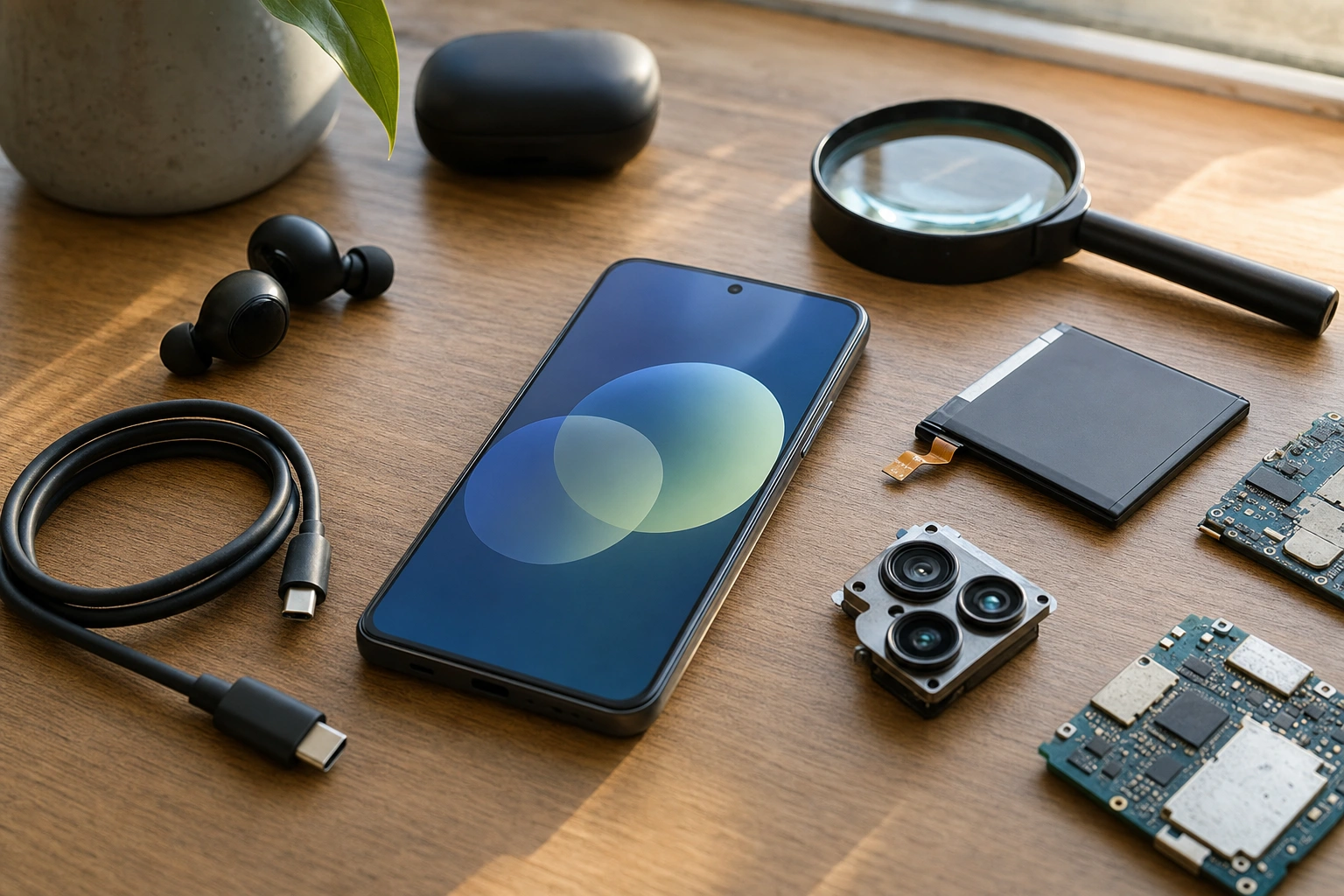
A smartphone is more than a device for making calls. It is a compact computer that combines communication, photography, internet access, navigation, entertainment, work tools and financial services in one portable package. Understanding its main parts and features makes it easier to choose a suitable phone, use it safely and solve common problems.
This guide explains the physical components you can see, the internal parts that power the device and the software features that make a smartphone useful. The exact design differs between brands and models, but the core ideas are similar whether you use an Android phone or an iPhone.
1. The Screen and Touch Interface
The screen is the main area through which you view information and control the smartphone. It displays text, images, videos, maps, websites and app controls. Most modern smartphones use a touchscreen, allowing you to operate the device by touching icons and menus rather than pressing many physical buttons.
Important screen features
- Size: A larger screen can make reading, typing and watching videos easier, but it may make the phone less convenient to hold in one hand.
- Resolution: This describes the amount of detail the screen can display. A higher resolution usually produces sharper text and images.
- Brightness: Brightness affects how easily you can see the screen outdoors or in a well-lit room. Excessive brightness, however, uses more battery power.
- Refresh rate: This refers to how often the display updates the image. A higher refresh rate can make scrolling and animations appear smoother.
- Touch sensitivity: The screen detects actions such as tapping, swiping, dragging and pinching.
Common touch gestures include tapping once to select an item, tapping twice to zoom or perform a special action, swiping to move through content, pressing and holding to open more options, and pinching with two fingers to zoom in or out. Learning these gestures makes navigation faster.
2. The Body, Frame and Back Cover
The body protects the internal parts of the smartphone. It usually includes a front panel containing the screen, a frame around the edges and a back cover that may contain the cameras and wireless charging components.
Materials vary. Some phones use plastic, while others use glass or metal. A strong frame can help the device withstand ordinary handling, but no material makes a phone completely resistant to drops. A protective case and screen protector can reduce damage, especially for people who carry their phones while travelling or working outdoors.
Some smartphones have water- and dust-resistance ratings. These ratings indicate how well a device is protected under specified test conditions; they do not mean that every phone can safely be submerged or exposed to liquids. Avoid charging a wet phone and follow the manufacturer's care instructions.
3. Buttons, Ports and the Speaker
Although most controls appear on the touchscreen, physical buttons and openings remain important.
- Power or side button: This usually wakes or locks the screen. Depending on the model, it may also open a voice assistant, take a screenshot or turn the phone off.
- Volume buttons: These control the loudness of calls, media, alarms and notifications. They may also work as camera shutter buttons.
- Charging port: This connects the phone to a charger and, on many devices, to a computer or other accessory. USB-C is widely used on modern smartphones, while some older devices use different connectors.
- Microphone: One or more microphones capture your voice during calls and recordings. Additional microphones may reduce surrounding noise.
- Speaker: The speaker produces ringtones, call audio, music, videos and notification sounds. Earpiece speakers are designed mainly for calls, while larger bottom or front speakers may handle media.
- SIM tray: This holds a physical SIM card on models that support one. Some phones also support an eSIM, which is activated digitally without inserting a physical card.
Keep ports free from dust and avoid forcing a connector into place. If the phone charges intermittently, the problem may involve the cable, charger, port or battery rather than the software.
4. The Battery and Charging System
The battery stores the electrical energy that allows the smartphone to operate away from a charger. Battery capacity is commonly expressed in milliampere-hours, or mAh. A higher capacity can support longer use, but actual battery life also depends on screen brightness, signal strength, camera use, gaming, background apps and battery age.
Smartphones use rechargeable batteries that gradually lose capacity over time. Heat, repeated heavy use and poor-quality chargers can affect battery performance. To care for a battery, use a suitable charger, keep the device away from excessive heat and avoid damaged cables. If a battery becomes swollen, unusually hot or physically damaged, stop using the phone and seek professional assistance.
Ways to reduce unnecessary battery use
- Lower screen brightness or enable automatic brightness.
- Turn off location, Bluetooth or mobile data when you do not need them, while remembering that some services require them.
- Close or restrict apps that use excessive background power.
- Use battery-saver mode when you need the phone to last longer.
- Install system and app updates from trusted sources, since updates may improve efficiency as well as security.
5. The Processor, Memory and Storage
The processor, also called the central processing unit or CPU, carries out instructions. It helps the phone open apps, process photographs, manage connections and respond to your actions. Smartphone processors often include several processing cores and may work with specialised components for graphics, artificial intelligence or image processing.
Random access memory, or RAM, temporarily holds information used by active apps. More RAM can help a phone keep several apps available without reloading them, although the quality of the software also matters. RAM is different from storage.
Internal storage holds the operating system, applications, photographs, videos, documents and downloaded files. A phone with limited storage may become difficult to use when it fills up. You can manage space by deleting unwanted videos, removing unused apps, moving files to approved cloud or computer storage, and reviewing duplicate downloads.
Some phones accept a microSD card for additional storage, but not all models do. Before buying a memory card, check whether the phone supports it and whether the card is suitable for the intended use.
6. The Cameras and Image Features
Most smartphones include a rear camera and a front-facing camera. The rear camera is normally used for general photography and video, while the front camera is useful for video calls, selfies and face-based features.
Camera quality is influenced by more than the number of megapixels. The lens, image sensor, image-processing software, aperture, stabilisation and lighting all affect the result. A phone may include several rear cameras, such as a standard camera, ultra-wide camera for larger scenes, telephoto camera for distant subjects or depth and macro cameras for particular effects.
Practical camera skills
- Clean the lens gently with a soft, clean cloth before taking important photographs.
- Hold the phone steadily and use both hands in low light.
- Tap the main subject on the screen to help the camera focus.
- Check lighting before taking the picture. A subject facing a bright window may appear dark unless exposure is adjusted.
- Use the grid or level feature to improve composition and keep horizons straight.
- Review storage and backup settings so valuable photographs are not lost if the phone is damaged.
Before photographing people, private documents or business premises, consider consent and confidentiality. A smartphone camera is useful in a shop, farm, classroom or office, but images can reveal personal information such as identity documents, addresses and financial details.
7. Mobile Networks, Wi-Fi and Other Connections
A smartphone can connect to the internet and other devices in several ways.
- Mobile data: This uses a cellular network and a SIM or eSIM. It is useful when travelling outside Wi-Fi coverage, but data charges may apply.
- Wi-Fi: This connects the phone to a wireless router or hotspot. It is commonly used at home, work, school, hotels and public locations.
- Bluetooth: This provides a short-range connection to accessories such as earphones, speakers, keyboards and some vehicles.
- GPS and location services: These help apps estimate your position for maps, directions, delivery services and location-based tools. Location access should be granted only when appropriate.
- Near Field Communication, or NFC: On supported devices, this enables very short-range communication for selected payments, access systems and accessory connections.
- Hotspot: This allows the smartphone to share its mobile internet connection with another device. It can be useful for a laptop, but it may consume data and battery quickly.
When using public Wi-Fi, avoid entering sensitive information on an unfamiliar network unless the service is secure and trusted. Turn off automatic connection to unknown networks where possible.
8. The Operating System, Apps and User Interface
The operating system is the main software that manages the phone's hardware and provides the environment in which apps run. Android and iOS are the most widely recognised smartphone operating systems, but their menus, settings and update processes differ.
Apps add specific functions. Examples include messaging, banking, mobile money, email, calendars, document editing, transport, learning, social networking and stock management. Download apps from the official app store associated with your device whenever possible. Check the developer, reviews, permissions and update history before installing an unfamiliar app.
The home screen contains shortcuts to commonly used apps. A notification panel displays alerts, while the settings app controls connections, display, sound, accounts, privacy and security. Rearranging apps into folders and removing unused shortcuts can make the phone easier to navigate.
9. Sensors and Accessibility Features
Smartphones use small sensors to respond intelligently to movement and surroundings. An accelerometer detects changes in movement and orientation. A gyroscope helps measure rotation, which supports games, camera stabilisation and screen orientation. A proximity sensor can turn off the display when the phone is held near your face during a call. An ambient light sensor can adjust screen brightness.
Many phones also include a fingerprint reader or facial recognition system. These features provide convenient access, but they should be used alongside a strong passcode. A passcode is particularly important after restarting the phone or when biometric recognition fails.
Accessibility tools help people with different needs. Useful options may include larger text, screen magnification, colour adjustments, captions, voice control, screen readers, hearing-device support and touch accommodations. Even users without a disability may benefit from larger text or voice typing when reading or entering information is difficult.
10. Security, Privacy and Safe Use
A smartphone may contain contacts, messages, photographs, work files, passwords and financial applications. Security is therefore part of basic smartphone skill, not an optional extra.
- Use a strong screen lock rather than an easy-to-guess pattern or PIN.
- Keep the operating system and apps updated through trusted channels.
- Review app permissions and deny access that is not needed for the app's function.
- Be cautious with links in unexpected messages, even when they appear to come from a known person.
- Enable device-finding and backup features where suitable.
- Do not share one-time passwords, mobile money PINs or banking credentials with another person.
- Lock the phone quickly if it is lost, and contact the relevant network or service provider when necessary.
Privacy also involves how you share information about other people. Avoid forwarding private photographs, conversations or documents without permission, and consider who can see your screen in public places.
Applying This in Practice
Suppose a small business owner in Kisumu wants to use a smartphone to record stock, communicate with customers and receive online orders. The most useful features may not be the most expensive specifications. A clear screen, dependable battery, sufficient storage, reliable mobile connectivity, a practical camera and secure access may matter more than a premium design.
- Choose a phone that supports the network bands, SIM type and apps required for the work.
- Set up a screen lock, recovery contact details and a regular backup routine before storing important business information.
- Organise essential apps into folders such as Communication, Finance, Work and Learning.
- Use Wi-Fi for large downloads when appropriate, while monitoring mobile-data use.
- Photograph stock or receipts in good light, label files clearly and remove unnecessary copies.
- Review battery, storage, permissions and updates once a month.
This same process works for a student, professional, farmer or family user: identify the tasks that matter, learn the relevant features and configure the phone for safe, efficient use rather than treating every feature as equally important.
Key Takeaways
- The screen, buttons, ports, speaker and body provide the main physical controls and protection.
- The processor runs instructions, RAM supports active apps and storage holds files and software.
- Battery life depends on capacity, screen use, connectivity, apps, heat and battery age.
- Camera quality depends on lenses, sensors, software, stability and lighting, not megapixels alone.
- Mobile data, Wi-Fi, Bluetooth, GPS, NFC and hotspots serve different connection needs.
- Strong screen security, careful permissions, updates, backups and cautious link handling protect your information.
No comments yet.