
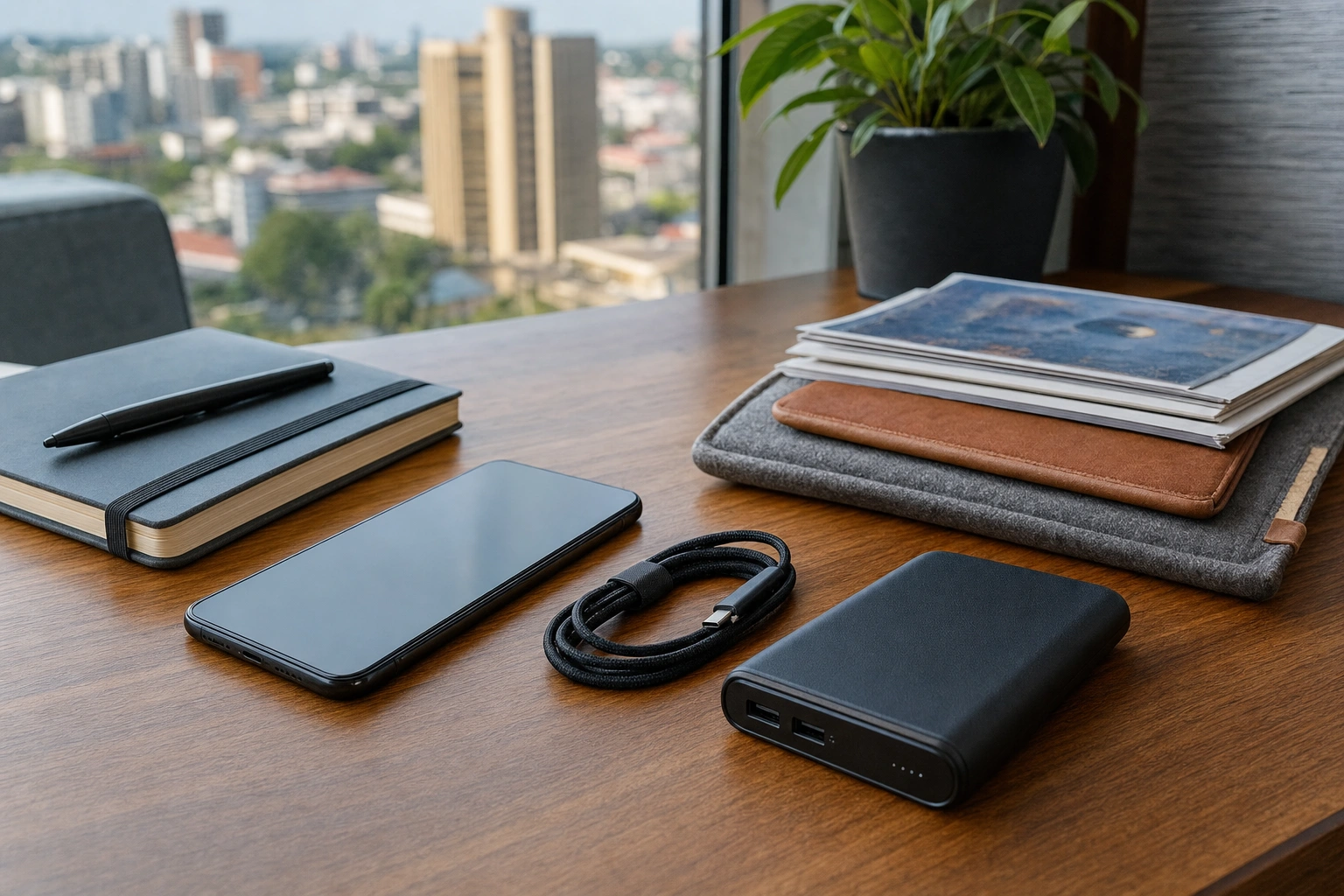
A smartphone can serve as a diary, map, library, camera, office, classroom and payment tool. Because so many parts of daily life now pass through one small device, managing it well is no longer only a technical skill. It is a practical life skill for protecting information, saving time and making better decisions about attention.
Managing your digital life means creating a deliberate system for your phone: knowing what is stored on it, controlling who can access it, keeping important information organised, and choosing which alerts and applications deserve your time. The goal is not to use every feature. The goal is to make the device reliable, safe and useful for your particular responsibilities.
Start with a Clear Digital Life System
Before changing settings, identify the main roles your smartphone plays. An entrepreneur may use it for customer messages, mobile money, stock records and social media. A professional may need email, calendars, video meetings and document access. A continuing learner may use it for online courses, reading, note-taking and research.
Write down the tasks that matter most and group them into broad areas such as:
- Communication: calls, text messages, email and messaging services.
- Work or business: documents, calendars, payments, customer records and productivity tools.
- Learning: e-books, educational videos, course platforms and notes.
- Personal administration: banking, transport, health records, appointments and identification documents.
- Entertainment and social activity: music, video, games and social networks.
This simple inventory helps you distinguish essential tools from applications that are merely available. It also makes it easier to decide what should appear on your home screen, what can remain in a folder and what should be removed altogether.
Organise the Home Screen and Applications
Your home screen is a working environment. An overcrowded screen increases the time needed to find important tools and may encourage you to open distracting applications automatically. Keep the first screen for applications you use frequently and intentionally, such as your calendar, camera, maps, notes, mobile money service or work communication tool.
Group less frequently used applications into clearly named folders. For example, you might create folders called Work, Finance, Learning, Travel and Media. Use names that describe the purpose of the folder rather than the type of application. A folder labelled “Business” is usually more useful than one labelled “Tools”.
Review installed applications every few months. Ask three questions:
- Do I still use this application?
- Does it provide a clear benefit?
- Do I trust the developer and understand the permissions it requests?
Uninstall applications you no longer need, especially those that have not been used for a long time. Removing an application may not delete your online account, so check whether you need to close the account separately. For applications you rarely use but cannot remove, disable unnecessary notifications and avoid granting permissions that are not needed for their function.
Control Notifications and Protect Your Attention
Notifications are useful when they signal something important, but they can also divide your attention throughout the day. A message about a work deadline may deserve immediate visibility; a promotional alert or an automatic social-media update usually does not.
Open your notification settings and sort alerts into three groups:
- Essential: alerts you need to act on promptly, such as important calls, security warnings or urgent work communication.
- Useful but not urgent: calendar reminders, learning updates and selected email notifications.
- Optional: marketing messages, game alerts and updates that can wait until you choose to open the application.
Turn off optional alerts or allow them only at selected times. Where your phone provides a “Do Not Disturb”, focus or scheduled quiet mode, use it during meetings, study periods, sleep and focused work. You can usually allow calls from selected contacts while silencing other interruptions.
Notification control is not the same as ignoring people. It is a way of deciding when you will respond. For example, a shop owner in Kisumu might check customer messages at set intervals while keeping payment and emergency alerts visible. A learner might silence social notifications during a two-hour study session but retain calendar reminders for an online class.
Build Strong Security Habits
A smartphone may contain private conversations, photographs, work documents, account details and access to financial services. Basic security should therefore be part of everyday phone management, not something considered only after a problem occurs.
Use a strong screen lock
Use a PIN or password that is difficult for another person to guess. Avoid obvious combinations such as a birth year or repeated digits. Fingerprint or face unlocking can improve convenience, but keep a strong PIN or password as a backup. Do not share your screen-lock code casually, and be careful when entering it in public places.
Protect your main accounts
Your email account is often especially important because it may be used to reset passwords for other services. Use a unique password for it and enable multi-factor authentication where available. A password manager can help you create and store different passwords without requiring you to memorise every one.
Do not approve an unexpected sign-in request simply because it appears on your screen. If you receive an unfamiliar code, password-reset message or account alert, open the service through its official application or website rather than following a suspicious link in a message.
Manage permissions
Applications may request access to your camera, microphone, contacts, location, photographs or files. Some access is necessary: a navigation application may need location, while a video-call application may need the camera and microphone. Other requests may not be essential.
Review permissions in your phone settings. Choose options such as “while using the app” or “ask every time” when they are available and appropriate. A torch application, for example, should not need access to your contacts. If an application stops working after a permission is removed, decide whether its benefit justifies restoring that access.
Keep Your Information Organised and Backed Up
Digital clutter develops quickly. Screenshots, downloaded documents, duplicate photographs and old voice notes can make it difficult to find the information you actually need. Create a simple routine for sorting files.
Use descriptive names for important documents, including the subject and date where helpful. “2025-06-18 Business permit renewal” is easier to locate than “document123”. If your phone supports folders, separate work, personal, learning and temporary downloads. Move important files to a trusted cloud service or a computer, and keep another copy of essential documents where appropriate.
Backups are valuable because a phone can be lost, stolen, damaged or reset. Check whether your contacts, photographs, calendar and important application data are being backed up. Backup settings differ between Android and iPhone devices and between individual applications, so confirm what is actually included rather than assuming that every file is protected.
Use mobile data thoughtfully when backups or video downloads are involved. If your data bundle is limited, schedule large backups and system updates for a trusted Wi-Fi connection. Avoid connecting to unknown public Wi-Fi networks for banking or other sensitive activities unless you understand the risks and use suitable protection.
Manage Mobile Data, Storage and Battery
Three practical resources affect how smoothly a smartphone works: data, storage and battery.
Mobile data
Review which applications use the most mobile data. Video platforms, automatic photo backups and social-media feeds can consume data quickly. Where possible, download learning materials or entertainment over Wi-Fi for later use, reduce video quality and prevent applications from refreshing in the background when you do not need that feature.
Storage
When storage is nearly full, the phone may become harder to use and may not save new photographs or updates. Start by removing large videos, duplicate images and downloads you no longer need. Check messaging applications because shared videos and documents can accumulate there. Before deleting anything, confirm whether it exists in a backup or is still needed.
Battery
Battery life depends on the device, applications, signal strength and settings. Lowering screen brightness, reducing unnecessary location access and closing or restricting unusually power-hungry applications can help. Carrying a suitable charger or power bank may be practical when travelling or working away from reliable electricity, but use compatible charging equipment and avoid damaged cables.
Communicate Clearly and Safely
Smartphone communication is fast, but speed can create misunderstandings. Use the channel that fits the message. A short urgent matter may suit a call; a detailed work instruction may be better in email or a document that can be referred to later. For business, keep customer conversations professional and separate personal messages from records that need to be retained.
Before forwarding a message, image or voice note, consider whether it is accurate, necessary and safe to share. Be particularly cautious with claims about money, health, employment or emergencies. A message that appears to come from a colleague or family member may still come from a compromised account. Verify unusual requests through another channel, especially requests for payment, one-time codes or confidential information.
Use contact names and groups carefully. A clear naming system helps you identify clients, suppliers, classmates and family members without sending a private message to the wrong person. In group conversations, avoid sharing another person’s photograph, contact details or private information without permission.
Use Your Smartphone for Learning and Productivity
A phone can support serious learning if you design a workable method. Save useful reading materials in one organised location, use notes to record questions and action points, and add deadlines to a calendar rather than relying on memory. If you watch an educational video, write down the main idea and one way you could apply it. Active processing is more useful than collecting links that you never revisit.
For work, use a calendar for commitments and a task list for actions. Distinguish between a task and an appointment: “submit quotation” is an action, while “client meeting at 10.00” is a scheduled event. Set reminders that give you enough preparation time. If you use your phone for business records, establish a consistent way to record customer names, follow-up dates and decisions, while respecting privacy and access requirements.
Voice typing, accessibility features, screen magnification, captions and text-to-speech can make a smartphone more useful. Explore these tools based on your needs rather than assuming that advanced smartphone use means installing more applications.
Practise Digital Wellbeing
Digital wellbeing involves using technology in a way that supports sleep, concentration, relationships and physical comfort. Check your screen-time information for patterns, not as a measure of personal worth. If a particular application regularly consumes time without helping you meet a goal, move it away from the home screen, remove its notifications or set a time limit.
Create phone-free situations that matter to you, such as meals, important conversations, study blocks or the period before sleep. Keep the device at a practical distance when you are working and take regular breaks to rest your eyes and change posture. The best routine will differ between people, but it should be intentional rather than controlled entirely by incoming alerts.
Troubleshoot Problems Systematically
When a phone behaves unexpectedly, avoid making several changes at once. First describe the problem clearly: Is one application failing, is the whole phone slow, or is the issue related to network access? Then try simple steps in order:
- Check whether the phone has enough battery, storage and network connection.
- Close and reopen the affected application, then restart the phone if necessary.
- Check for pending application or system updates from the official app store or device settings.
- Review permissions and settings related to the problem.
- Look for help in the official support information for the device or application.
Do not install unknown “cleaner”, “booster” or security applications merely because a pop-up claims that your phone is infected. Such messages may be misleading. If the problem involves financial accounts, suspected theft or unauthorised access, contact the relevant provider through an official channel and change affected passwords from a trusted device.
Applying This in Practice
Set aside 30 to 45 minutes for a smartphone review. Begin by deleting unused applications and arranging the home screen. Next, turn off unnecessary notifications and check screen-lock, account-security and permission settings. Review storage, mobile-data use and backup status. Finally, create one small routine, such as a weekly file clean-up or a daily period without non-essential notifications.
Record the changes you make and note anything that requires further attention. You might discover that an old email account is still connected, that important photographs are not backed up, or that a learning application is hidden among dozens of unused tools. Deal with the highest-risk or highest-value issue first. Good smartphone management develops through regular small reviews rather than one complicated technical overhaul.
Key Takeaways
- Organise your smartphone around the tasks that matter most, not around every application you have installed.
- Keep essential notifications visible and silence optional alerts during focused work, learning and rest.
- Use a strong screen lock, unique account passwords, multi-factor authentication and careful permission settings.
- Back up important information and regularly clear unnecessary files, downloads and duplicate media.
- Manage mobile data, storage and battery deliberately so that the phone remains reliable when you need it.
- Verify unusual messages and payment requests through trusted channels before sharing information or taking action.
No comments yet.