
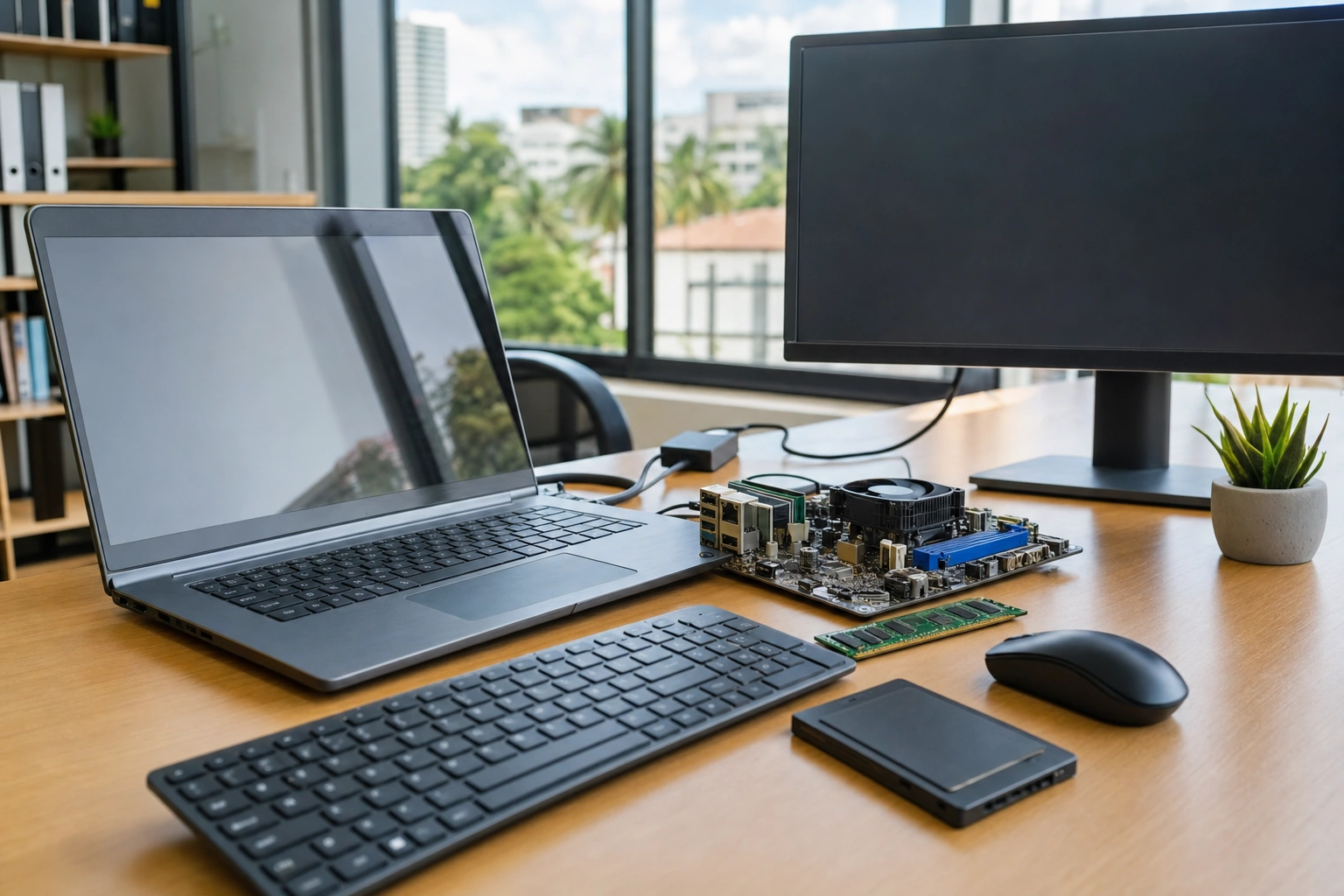
Every computer task, from opening a document to joining a video meeting, depends on two broad elements: hardware and software. Hardware is the physical equipment you can touch, while software consists of the instructions and data that tell the equipment what to do. Neither works effectively in isolation. A powerful laptop without suitable software is largely an unused collection of electronic components, while software without hardware has no physical system on which to run.
Understanding this relationship helps learners use computers more confidently. It also makes common problems easier to diagnose. If a programme is slow, for example, the cause may be an overloaded processor, insufficient memory, a nearly full storage drive, an outdated driver or a problem within the programme itself. The sections below explain how the parts work together and how this knowledge applies in workplaces, businesses, schools and everyday digital activities.
What Is Computer Hardware?
Computer hardware includes the physical components of a computing device. These components receive input, process instructions, store information and produce output. A desktop computer, laptop, tablet and smartphone all contain hardware, although their size, design and capabilities differ.
Important hardware components include:
- Central processing unit (CPU): The processor executes instructions and performs calculations. It is often described as the computer’s main processing centre.
- Random access memory (RAM): RAM temporarily holds the programmes and data currently in use. More available RAM can help a computer handle several active tasks, although performance also depends on the processor and software.
- Storage: Solid-state drives, hard disk drives, memory cards and other storage devices keep files and programmes for later use. Unlike RAM, storage retains information when the computer is switched off.
- Input devices: Keyboards, mice, touchscreens, microphones, scanners and cameras allow users or other systems to provide information.
- Output devices: Screens, speakers, printers and projectors present the results of processing.
- Motherboard and connections: The motherboard allows major components to communicate. Ports, cables, wireless equipment and internal connections move data between the computer and external devices.
- Power and cooling systems: Batteries, power supplies, fans and heat-management components provide energy and help hardware operate safely.
Hardware does not decide independently what a user wants to accomplish. It needs instructions. Those instructions are supplied by software.
What Is Computer Software?
Software is a collection of instructions, programmes and related data that directs hardware. It cannot normally be touched, although it is stored on physical devices and displayed through physical equipment. Software may be divided into system software and application software.
System software
System software manages the computer’s basic operations and provides a platform for other programmes. The most important example is the operating system, such as Windows, macOS, Linux, Android or iOS. An operating system manages files, memory, users, security, devices and communication between applications and hardware.
Other system software includes device drivers, firmware and system utilities. A driver is a specialised programme that helps the operating system communicate with a particular device. For example, a printer driver translates general printing instructions into commands the printer can understand.
Application software
Application software helps users complete specific tasks. Word processors support document creation, spreadsheets support calculations and analysis, web browsers provide access to websites, and accounting packages help businesses record transactions. Design tools, messaging applications, learning platforms and point-of-sale systems are also applications.
An application usually does not control hardware directly. Instead, it requests services from the operating system. The operating system then coordinates with the relevant driver and hardware component. This layered arrangement allows many applications to use the same keyboard, screen, printer or storage device without each application needing to understand every technical detail.
How Hardware and Software Communicate
Communication between hardware and software occurs through several layers. A simplified sequence looks like this:
- The user gives an instruction. This may involve pressing a key, selecting a menu item, speaking into a microphone or touching a screen.
- The input device detects the action. The keyboard, mouse, touchscreen or microphone converts the physical action or sound into electronic signals.
- The operating system receives and interprets the input. It identifies which application is active and passes the relevant information to that application.
- The application processes the request. A word processor may place a character in a document, while a browser may request a webpage.
- The operating system allocates resources. It decides which processor time, memory, storage access and network services are needed.
- Hardware performs the work. The CPU executes instructions, RAM holds temporary data, storage reads or writes files, and network equipment sends or receives information.
- The result is presented to the user. The display, speakers, printer or another output device communicates what has happened.
Consider typing a letter into a word processor. When you press a key, the keyboard sends an electronic signal. The operating system identifies the key and informs the word processor. The application updates the document in memory, and the graphics system displays the character on the screen. If you save the document, the operating system sends instructions to the storage device, where the file is written for future use.
The Role of the Operating System
The operating system acts as a coordinator between the user, applications and hardware. Without it, each application would need its own method for controlling the screen, keyboard, storage and other components. This would make software more difficult to create and use.
One responsibility of the operating system is process management. It shares processor time among active programmes so that a browser, music player and document editor can appear to run at the same time. It also manages memory, assigning RAM to applications and reclaiming it when programmes close.
The operating system also provides file management. It organises folders, records where files are stored and controls actions such as opening, copying, renaming and deleting. Its security functions may include user accounts, permissions, screen locking and support for updates or protective tools.
When you connect a new printer or external drive, the operating system may recognise it automatically. If it cannot, you may need to install a suitable driver. This is why a device can be physically connected yet still fail to work correctly: the hardware is present, but the software needed to communicate with it may be missing, damaged or incompatible.
How Applications Use Hardware
Applications rely on different hardware components depending on the task. A spreadsheet uses the CPU to perform calculations and RAM to keep active worksheets available. It uses storage to open and save workbooks, and the display to show tables and charts. A video-editing programme may require a faster processor, more RAM and specialised graphics hardware because it processes large amounts of visual and audio data.
A web browser demonstrates the relationship particularly clearly. It uses input hardware when you type a web address, the operating system to manage the browser window, network hardware to exchange data, the CPU to process webpage instructions, RAM to hold active pages and the screen to display the result. If a website includes sound, the browser also works with audio drivers and speakers or headphones.
In a small Kenyan business, a point-of-sale application may receive information from a barcode scanner, calculate a transaction using the processor, update stock records on storage, connect to a receipt printer and display the sale on a monitor. If the network is involved, the application also depends on a router, network adapter and reliable communication software. A failure in any one part can affect the complete transaction.
Data, Memory and Storage
It is useful to distinguish RAM from storage. RAM is temporary working space. When a programme is open, its active instructions and data are loaded into RAM so the processor can access them quickly. When the computer loses power, information in RAM normally disappears.
Storage is used for long-term retention. Documents, photographs, installed applications and the operating system are stored on a drive or another storage medium. When you open a file, the system reads it from storage and places the necessary information into RAM. When you save changes, the updated information is written back to storage.
This explains why a computer can have plenty of storage but still become slow when many programmes are open: it may have limited available RAM or a processor under heavy demand. It also explains why deleting files may create more storage space without directly increasing processing speed. Different problems require different solutions.
Drivers, Updates and Compatibility
Drivers form an important link between general-purpose software and specific hardware. A graphics driver helps the operating system and applications use a display adapter. An audio driver supports sound input and output. A network driver helps the computer communicate through wired or wireless equipment.
Drivers must be compatible with both the device and the operating system. An incorrect or outdated driver may cause missing sound, poor display performance, unreliable printing or connection failures. Software updates can also improve security, repair faults and add support for newer hardware, but updates should be obtained through trusted sources and installed with care.
Compatibility matters at several levels. A programme may require a particular operating system, processor type, amount of memory or screen resolution. An older computer may be able to install new software but run it poorly. Conversely, a modern application may not support an old operating system. Before purchasing or installing software, check its requirements and confirm that the device meets them.
What Happens When You Start a Computer?
Starting a computer illustrates the cooperation between hardware and software. When power is supplied, the device’s firmware performs initial checks and helps locate a bootable storage device. The operating system is then loaded from storage into memory. Once the operating system is ready, it starts background services, loads drivers and presents the sign-in or home screen.
After sign-in, the system may load additional applications and services. Some programmes start automatically, which can be convenient but may also consume memory and processor capacity. If a computer takes a long time to start, possible causes include many start-up applications, limited storage space, hardware problems, system errors or a large update being installed. A methodical check is more useful than assuming that the processor alone is responsible.
Using the Relationship to Troubleshoot Problems
When something goes wrong, first identify whether the problem is likely to involve hardware, software or the connection between them. This is not always obvious, but a structured approach helps.
- Describe the symptom precisely. Is the screen blank, is one programme crashing, is the entire computer slow, or is a device not detected?
- Check simple physical causes. Confirm power, cables, battery charge, volume controls, wireless connections and visible damage.
- Restart where appropriate. Restarting can clear temporary software errors and reload drivers, although it will not repair damaged hardware.
- Test the scope of the problem. Try another file, application, port or user account. If only one programme fails, the issue may be application-specific.
- Check system resources. Look for high processor, memory, storage or network usage. Close unnecessary applications and save work before making changes.
- Check updates and drivers. Use trusted operating-system or manufacturer tools, and avoid random downloads that may introduce security risks.
- Protect data before major action. Back up important work before reinstalling software, resetting a device or replacing hardware.
For example, if a printer does not produce a document, check whether it has power and paper, confirm the cable or network connection, see whether the correct printer is selected, examine the print queue and check the driver. Replacing the printer immediately may be unnecessary if the actual issue is a paused queue or an incorrect software setting.
Applying This in Practice
You can strengthen your understanding by tracing an everyday task from input to output. Choose an activity such as sending an email, preparing a budget, scanning a document or attending an online class. Identify the input device, application, operating-system service, processor activity, memory use, storage requirement, network connection and output device involved.
For a small business budget, the keyboard supplies figures, the spreadsheet application organises them, the CPU performs formulas, RAM holds the open workbook, storage saves the file and the display shows results. If the workbook is shared online, network hardware and communication software also become part of the process. This exercise shows that a computer task is usually a chain rather than a single action.
When buying or upgrading a computer, begin with the work you need to perform rather than focusing on one impressive specification. A learner who mainly writes documents and uses web applications may value reliability, battery life, a comfortable keyboard and adequate storage. Someone editing high-resolution video may need stronger processing, more memory and suitable graphics capability. The best choice is the combination that matches the software and workload.
Good computer practice also includes keeping software updated, installing programmes from reputable sources, maintaining backups and leaving reasonable free storage space. These habits support the cooperation between hardware and software and reduce avoidable interruptions in study or work.
Key Takeaways
- Hardware is the physical equipment, while software provides the instructions that make the equipment useful.
- The operating system coordinates applications, memory, files, devices, security and communication with hardware.
- Applications normally use hardware through the operating system and relevant drivers rather than controlling devices directly.
- RAM provides temporary working space, while storage retains programmes and files for later use.
- Computer performance depends on the combined demands and condition of the processor, memory, storage, drivers and software.
- When troubleshooting, check the symptom, physical connections, software settings, system resources, drivers and data backups in a logical order.
No comments yet.