
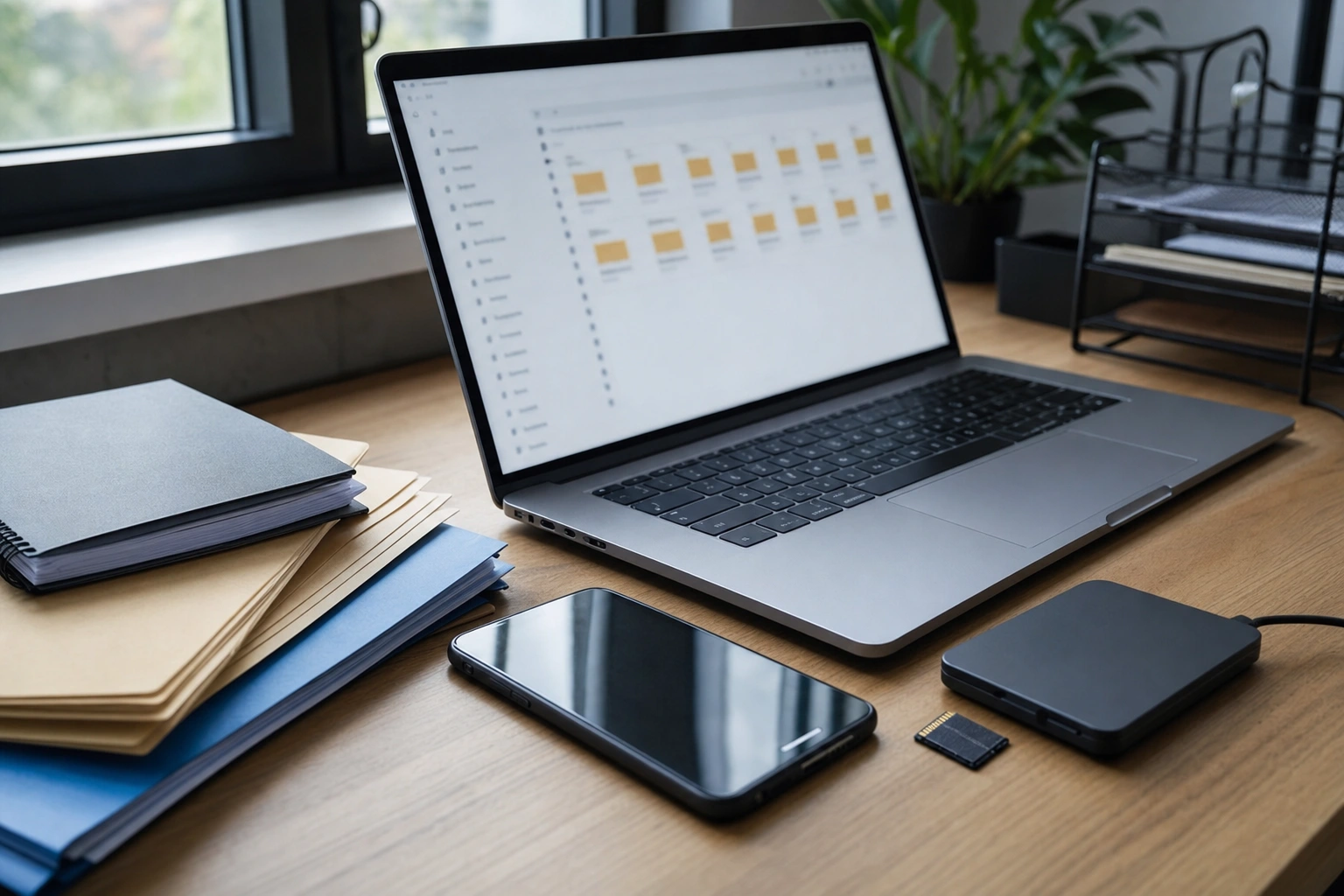
Files, folders and digital storage are the basic building blocks of everyday computing. Whether you are preparing a CV, managing business records, downloading a receipt or saving family photographs, you are working with digital information that must be named, stored and retrieved.
Understanding these concepts helps you use a phone, computer or tablet with greater confidence. It also reduces common problems such as losing documents, creating several confusing copies of the same file, filling up storage or accidentally sharing private information. The principles are the same across Windows, macOS, Android, iOS and most online storage services, even though the buttons and menus may differ.
What Is a Digital File?
A digital file is a named collection of information stored electronically. The information may be text, an image, a video, sound, a spreadsheet, a presentation or software instructions. For example, a document containing your business budget is a file, as is a photograph taken with a smartphone.
Files usually have three important features:
- A name: This helps you identify the file, such as March Sales Report.
- A format or file type: This indicates how the information is organised and which applications can open it.
- A location: This shows where the file is stored, such as a Downloads folder, a memory card or an online drive.
Many files also have an extension after a full stop. A word-processing document might end in .docx, a spreadsheet in .xlsx, an image in .jpg or .png, and a portable document in .pdf. The extension is useful because it helps the operating system identify which programme should open the file. Some devices hide extensions by default, but the file type can usually still be seen in its details.
Files and Folders: The Difference
A file contains information. A folder is a container used to organise files and, in many systems, other folders. You can think of a file as a document in a filing cabinet and a folder as a labelled section that keeps related documents together.
For example, a small catering business might create a main folder called Business Records. Inside it could be separate folders named Invoices, Suppliers, Menus and Tax Documents. The Invoices folder might contain files such as Invoice-2025-04-Client-A.pdf and Invoice-2025-05-Client-B.pdf.
Folders do not usually contain the actual information in the same way that files do. Instead, they provide structure. A good folder structure makes it quicker to locate information and easier to share or back up a complete collection of related files.
Folders within folders
You can create subfolders when a broad category contains many items. A personal learning folder might be organised as follows:
- Learning
- Digital Skills
- Course Notes
- Assignments
- Certificates
This is known as a folder hierarchy. Avoid creating too many levels, however. If you must open six or seven folders every time you need one file, the structure may be unnecessarily complicated. A useful system should be detailed enough to be clear but simple enough to use consistently.
Where Are Files Stored?
Digital files can be stored in several places. Knowing the difference helps you decide where a file belongs and how it should be protected.
Internal storage
A computer or phone has built-in storage, sometimes called internal storage or a drive. The operating system, applications and personal files may all be kept there. Internal storage is convenient and usually fast, but it can become full or become inaccessible if the device is damaged or lost.
On a computer, files may be organised in locations such as Documents, Pictures, Videos and Downloads. On a phone, photographs and files downloaded from messaging or web applications may be placed in different app-specific folders.
External storage
External storage includes USB flash drives, portable hard drives and memory cards. These devices can be useful for transferring files or keeping an additional copy. They are small and convenient, but they can be lost, damaged or infected with malware if used carelessly.
Before removing a USB drive from a computer, use the system's eject or safely remove option where available. This reduces the risk of interrupting a file transfer or damaging the drive's file structure.
Cloud storage
Cloud storage saves files on remote computer systems accessed through the internet. Examples include online drives connected to email or productivity accounts. You can often access these files from more than one device and share selected items with other people.
Cloud storage is not the same as magic or unlimited space. It depends on an account, internet access for many activities and the provider's storage limits. You must also understand whether a service is synchronising files with your device or merely displaying files stored online.
Network storage
In some offices, schools and organisations, files are stored on a shared network location. This allows authorised users to access common documents. Network storage can support teamwork, but access permissions matter: not everyone should automatically be able to view, edit or delete every file.
Understanding File Locations and Paths
A file's location can be described as a path. A path identifies the folders that must be followed to reach the file. For example, a document might be located in Documents > Business Records > Invoices > Invoice-2025-04.pdf.
On a phone, you may not see a traditional path, because applications often manage their own folders. However, the same idea applies. A photograph may be stored in a camera folder, while a downloaded document may be in Downloads or inside a folder associated with a particular application.
Understanding locations is especially important when an application asks you to choose where to save a file. If you select Save without checking the location, the file may be stored in a default folder and become difficult to find later. When saving an important file, pause to check both the name and the destination.
Common File Operations
Most devices allow you to perform a group of basic actions on files and folders.
- Create: Make a new document, image, folder or other item.
- Open: View or edit a file using a suitable application.
- Save: Store new information or changes to an existing file.
- Rename: Change the file or folder name without changing its contents.
- Copy: Make a second version while leaving the original in its current location.
- Move: Transfer the item to a different folder or storage location.
- Delete: Remove the item, normally sending it first to a Recycle Bin or Trash.
- Share: Give another person access through a link, attachment, nearby transfer or storage device.
Copy and move are easy to confuse. If you copy a file from Documents to a USB drive, the original remains in Documents. If you move it, the file usually leaves the original location. When in doubt, copy first, confirm that the new version works, and remove the unnecessary copy later.
Choosing Clear File Names
A useful file name tells you what the file contains without requiring you to open it. Names such as Document1, New File or Photo provide little information. A better name might be Client-Meeting-Notes-2025-06-12.
Good naming practices include:
- Use words that describe the content.
- Include a date when the information changes over time. A year-month-day format, such as 2025-06-12, keeps dates in a consistent order.
- Use a consistent style for related files.
- Avoid very long names that are difficult to read.
- Do not use characters that your device or cloud service may reject, such as slashes in places where they represent folders.
- Do not rely on colour, position or memory alone to identify files.
For versions, use names such as Project-Plan-v1, Project-Plan-v2 and Project-Plan-Final only when the status is genuinely clear. If several people edit a file, including the date or editor's initials may be more useful than repeatedly using the word “final”.
Storage Capacity and File Size
Storage capacity describes how much information a device or service can hold. File size describes how much space one file uses. Text documents are often relatively small, while high-resolution photographs, videos and application installers may use much more space.
When storage is nearly full, a device may have less room for new photographs, downloads, updates or temporary working files. To manage space, review large files first, remove unnecessary downloads, empty the Recycle Bin or Trash when appropriate, and transfer important media to a properly organised additional location.
Do not delete a file simply because it is large. First decide whether it is important, whether another copy exists and whether it must be retained for business, school or personal reasons. If you use cloud synchronisation, deleting a file from one synchronised device may also delete it from the online location and other connected devices.
Backups: Protecting Against Loss
A backup is an additional copy of important information kept so that it can be recovered if the original is lost, damaged, corrupted or accidentally deleted. Saving a file in one place is not a backup. A second copy on the same device may also be insufficient if that device fails.
Important information might include identity documents, business accounts, customer records, certificates, family photographs and work in progress. A practical approach is to keep the working copy in its normal location and maintain another copy on a separate storage device or trusted online service.
Backups should be checked occasionally. A backup that cannot be opened or whose contents are incomplete will not help when needed. You should also understand whether your backup service keeps earlier versions of files, since this can be useful after accidental changes or deletion.
Cloud Synchronisation and Sharing
Synchronisation means that changes made in one location are reflected in another location. For example, a file saved in a synchronised folder on a laptop may also appear in an online account and on a phone. This is convenient for continuing work across devices.
Synchronisation is different from a separate backup. If a damaged or unwanted change synchronises everywhere, the problem may spread to every copy. Use version history, recycle-bin recovery or a separate backup where those features are available.
Before sharing a cloud file, check the permission. A link may allow another person to view, comment on or edit the file. A broad link can expose more information than intended, especially if the folder contains related documents. Share the specific file needed, give the minimum suitable permission and remove access when it is no longer required.
Privacy and Security
Files can contain private information such as identification details, financial records, passwords, customer data or confidential work. Protect them by using a strong device passcode, keeping software updated and avoiding the storage or sharing of sensitive files through untrusted services.
Be cautious with unexpected attachments and downloaded files. A file name that looks familiar does not prove that the file is safe. Scan files with available security tools and avoid opening suspicious attachments, particularly when they request unusual permissions or ask you to enable unsafe features.
When selling, donating or discarding a device, do not assume that deleting a few files is enough to protect your information. Use the device's proper reset or secure disposal process, and remove accounts where appropriate. For organisational equipment, follow the responsible organisation's data-handling procedure.
Applying This in Practice
Use the following process to organise a collection of files, whether it belongs to a course, a household or a small business:
- List the main categories. For example, create categories such as Finance, Projects, Personal Documents and Photos.
- Create a small number of main folders. Avoid placing everything in one folder, but do not create a complicated hierarchy.
- Review existing files. Delete only items that are clearly unnecessary and move useful files into the correct folders.
- Rename unclear items. Use descriptive names and consistent dates or version labels.
- Check duplicates. Compare similar files before deleting anything, because two files with similar names may contain different information.
- Choose a backup location. Copy important folders to separate storage or a trusted online service.
- Test access. Open a few copied files to confirm that the backup works.
- Review sharing permissions. Remove public or unnecessary access to confidential documents.
For example, a Kenyan entrepreneur managing mobile-money records, supplier invoices and stock information could create folders for each business year, then subfolders for Sales, Purchases and Expenses. Consistent file names would make it easier to locate a particular record when preparing reports or responding to a query. The same system can be adapted for a professional managing projects or an adult learner storing course materials.
Key Takeaways
- A file contains digital information, while a folder organises related files and subfolders.
- Always check a file's name, type and location when saving or searching for it.
- Use descriptive names with consistent dates or version labels so files are easy to identify.
- Copying creates another version; moving changes the file's location.
- Cloud synchronisation improves access across devices but is not automatically a separate backup.
- Keep additional copies of important files and test that they can be opened.
- Protect sensitive files by checking sharing permissions, using device security and treating unexpected downloads carefully.
No comments yet.