
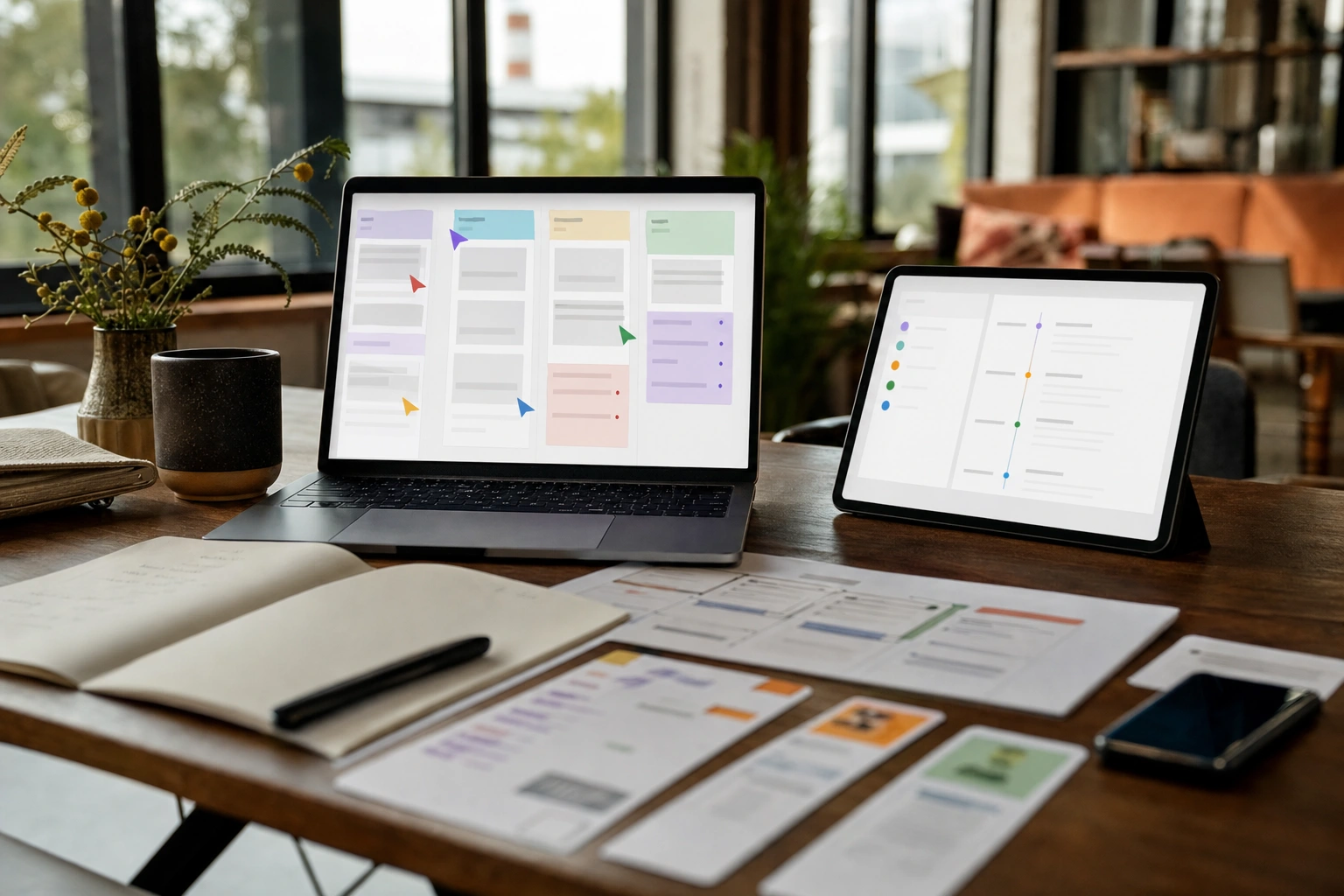
Real-time online collaboration is the ability for two or more people to work on the same digital task while seeing updates as they happen. Instead of emailing separate files or waiting for one person to finish before another can begin, collaborators can edit documents, discuss decisions, assign work and review progress through connected online tools.
Most real-time collaboration depends on cloud computing. The working files and collaboration services are hosted on remote servers rather than stored only on one person’s computer. This makes it possible for a Nairobi-based entrepreneur, a designer in Mombasa and a client in London to work on the same proposal without maintaining several conflicting copies.
What Makes Collaboration “Real-Time”?
Traditional digital collaboration is often based on a sequence: one person creates a file, sends it to another person, receives an edited version and then combines the changes. This approach can work for small tasks, but it becomes difficult when several people contribute at once. File names such as Report Final, Report Final 2 and Report Final Revised are signs that version control is becoming a problem.
Real-time collaboration changes this process by keeping a shared working version online. When a user types, moves an object, adds a comment or changes a task status, the application sends that action to its service. The service then distributes the update to other authorised users. Their screens refresh quickly, often showing the change within a fraction of a second or a few seconds, depending on the tool and the quality of the connection.
“Real-time” does not always mean that every device changes at precisely the same instant. It usually means that updates are delivered continuously enough for people to work together naturally, without repeatedly refreshing pages or exchanging files.
The Main Components of a Cloud Collaboration System
1. The user interface
This is the application people interact with. It may be a web browser, desktop programme or mobile app. The interface displays the document, project board, spreadsheet, conversation or design canvas. It also provides controls for editing, commenting, sharing and managing notifications.
2. The cloud service
The cloud service runs on remote computing infrastructure. It stores files, checks permissions, processes changes and communicates with connected users. The service may be operated by a technology provider or by an organisation using its own managed infrastructure.
3. Data storage
Shared files and related information are saved in online storage. This may include the document itself, earlier versions, comments, user activity, access settings and information about when a change occurred. Cloud storage does not remove the need for good file organisation; it simply makes shared access and central management possible.
4. Identity and permissions
Collaboration tools must know who is using them and what each person is allowed to do. A team member may be permitted to edit a budget, while a client may only be allowed to comment. Administrators may control membership, sharing links, downloads and removal of access.
5. Network connections
Updates travel between the user’s device and the cloud service through an internet connection. Strong, stable connectivity generally produces a smoother experience, although many modern tools offer some offline capability. If the connection is slow or interrupted, updates may be delayed or temporarily stored on the device.
How an Update Travels Through the System
Consider a shared project plan. A team member changes a task from In progress to Complete. The process normally involves several stages:
- Input: The user selects the new status in the application.
- Local processing: The application updates the user’s screen immediately or prepares the change for transmission.
- Transmission: The application sends information about the action to the cloud service.
- Validation: The service checks that the user is authenticated, has permission and is working with an acceptable version of the project.
- Storage: The service records the update and may create an activity entry or version record.
- Distribution: Other connected users receive the change through an ongoing connection or a short request to the service.
- Display: The collaborators’ interfaces update the task status, activity feed or notification area.
Many applications maintain an ongoing communication channel rather than relying only on repeated page requests. This reduces the delay between an action and its appearance for other users. The technical method varies between products, but the practical result is similar: the shared workspace behaves as a living environment rather than a collection of separately exchanged files.
How Tools Handle Simultaneous Editing
The most difficult technical problem appears when two people change the same information at nearly the same time. A good collaboration tool must prevent one person’s work from silently overwriting another’s.
Different systems use different approaches. Some divide a document into small units and record individual operations, such as inserting text at a particular position or deleting a specific range. The service can then order and reconcile those operations so that each user receives a consistent document. Other systems use a mathematical method designed to merge changes reliably even when they arrive in a different order.
Users do not need to understand the underlying algorithm to collaborate effectively, but they should understand the visible consequences:
- Two people may type in the same document and see each other’s cursors or highlighted areas.
- The application may briefly show that it is saving or synchronising.
- If changes cannot be merged automatically, the tool may display a conflict for a user to review.
- Version history can help restore an earlier state when an unwanted change is accepted.
Simultaneous editing works best when people divide responsibilities clearly. For example, one person can revise the introduction while another checks the financial assumptions. This reduces overlapping edits and makes human review easier, even when the software can technically merge both contributions.
Collaboration Is More Than Shared Editing
A shared document is only one part of online collaboration. Modern cloud tools often combine several functions in one environment:
- Comments and mentions: A user can ask a question beside a specific paragraph and notify a colleague without changing the main text.
- Task management: Work can be divided into tasks with owners, deadlines, priorities and statuses.
- Version history: Teams can inspect earlier changes and sometimes restore previous versions.
- Presence indicators: The system may show who is currently viewing or editing a workspace.
- Notifications: Users can receive alerts about assignments, replies, approvals and changes.
- Integrated communication: Some platforms connect documents to chat, video meetings, calendars or shared databases.
These functions reduce the distance between discussion and action. Instead of agreeing during a meeting and then manually recreating the decisions in a separate spreadsheet, a team may record the decision, assign the work and attach supporting material in the same project space.
Common Examples in Work and Learning
A small Kenyan catering business might use a shared spreadsheet to track event orders, ingredient requirements and supplier payments. The owner can update quantities from a phone while an assistant checks availability from a laptop. Comments can clarify whether a price includes delivery, and a version record can show how the order changed.
A professional services firm may use a cloud document for a client proposal. The business development officer manages the structure, a subject specialist adds technical content and a finance colleague checks the pricing. Rather than circulating attachments, the team works from one controlled file and gives the client comment-only access when appropriate.
In education, learners can contribute to a group presentation from different locations. A lecturer can leave feedback beside a draft, while a group leader uses a task board to allocate research, design and referencing responsibilities. This makes participation more visible than a single student submitting a final file for everyone.
Remote and hybrid teams also use shared calendars, digital whiteboards, issue trackers and knowledge bases. The important principle is not the brand of the tool but the way the tool creates a common source of information.
What Happens When the Internet Fails?
Connectivity affects real-time collaboration directly. With no connection, a user may be unable to see new updates or send changes immediately. Some applications provide an offline mode: the device stores edits locally and sends them when the connection returns.
Offline work creates a synchronisation challenge. If several users edit the same content while disconnected, the service must merge the changes or ask someone to resolve a conflict. Users should therefore avoid assuming that an offline copy is the current master version. Before making important changes, check the last synchronised time and confirm that the application has finished uploading.
Practical measures can improve reliability. Teams should maintain clear naming and folder rules, avoid keeping the only copy of critical information in an unsynchronised local folder, and know how to export essential records. For important business documents, a cloud platform’s version history should support—not replace—an organisation’s backup and retention arrangements.
Security, Privacy and Access Control
Putting work in the cloud makes access management especially important. A shared link that is convenient for a team may also expose information to people who should not see it. Before sharing a file, check whether access is limited to named users, members of an organisation or anyone with the link.
Use individual accounts rather than one shared password. Strong authentication, including an additional verification step where available, reduces the risk that a stolen password will provide immediate access to every workspace. Give people the minimum permission needed for their role: viewing, commenting and editing are not interchangeable.
Review access when a project ends or when someone leaves a team. Remove old external users, check public links and be careful when downloading files to personal devices. Sensitive information should be handled according to the organisation’s policies and any applicable contractual or legal obligations. A cloud provider may secure its infrastructure, but users and administrators still make important decisions about sharing and account protection.
Limitations and Human Factors
Real-time tools can create the impression that everyone is equally informed, but visibility is not the same as understanding. A person may see a document change without noticing the reasoning behind it. Notifications can also become excessive, causing important requests to disappear among minor updates.
Teams need agreed working practices. These might include when to use a comment instead of editing someone else’s text, how to label urgent requests, who approves final content and which workspace contains the authoritative version. A short decision recorded beside the relevant task is often more useful than a long conversation in an unrelated chat channel.
There are also costs. Cloud tools require subscriptions or administrative effort in some settings, and users need time to learn them. A poor connection, an overloaded device or an unsuitable mobile interface can make collaboration frustrating. For highly sensitive or specialised work, an organisation may need additional controls, contractual checks or a different technical arrangement.
Applying This in Practice
To introduce real-time collaboration into a small team, begin with one recurring workflow rather than moving every activity at once.
- Choose a suitable process: Select a task such as preparing proposals, tracking stock or managing a training project.
- Define the shared source: Decide which document, board or database is the official working record.
- Assign responsibilities: Identify who can view, comment, edit, approve and administer the workspace.
- Set simple rules: Agree on naming, deadlines, comments, notifications and how completed work is archived.
- Test the workflow: Have two or three users make controlled changes and observe how updates, permissions and version history work.
- Plan for interruptions: Decide what users should do when the internet fails, a device is lost or a change needs to be reversed.
- Review after use: Remove unnecessary steps, reduce noisy notifications and confirm that the tool is improving the process rather than merely adding another place to check.
When evaluating a cloud collaboration tool, ask: Can our users access it on the devices and connections they actually have? Does it provide useful version history? Can we control external sharing? What happens during simultaneous or offline editing? How easily can we export our information if our needs change?
Key Takeaways
- Real-time collaboration keeps a shared online workspace updated as authorised users work.
- Cloud services coordinate storage, permissions, synchronisation and delivery of changes.
- Version history and conflict handling protect work when people edit at the same time.
- Good collaboration includes comments, tasks, approvals and clear decisions—not only shared documents.
- Offline editing can help during connectivity problems, but users must check that changes have synchronised.
- Individual accounts, suitable permissions and regular access reviews are essential for protecting shared information.
No comments yet.